Tooling
VS Code Extension
The official Bascik extension brings component navigation, context-aware component, prop, and slot suggestions, rich hover details, syntax highlighting, and real-time diagnostics into VS Code. It is powered by the @bascik/language-server engine, which also provides CLI linting and editor support for Neovim.
Install the Extension
- Open the Extensions view in VS Code and search for
bascik, or run Extensions: Install Extensions from the Command Palette. - Install the official Bascik extension.
That is all the setup there is. The extension activates for HTML, CSS, JavaScript, and TypeScript files in a workspace and uses Bascik's standard project layout, so no editor settings are required. In a Bascik project it also offers, once, to turn off one VS Code check that gives false errors on Bascik pages, as Several Scripts in One File explains.
What You Get
| When you... | The extension... | Learn more |
|---|---|---|
Type < and the start of a tag | Suggests your project's components | Component tags |
| Add attributes to a component | Suggests its props and named slots | Props and slots |
Write a <script> | Offers the five execution directives | Script directives |
| Hover a component tag | Shows its source, props, and slots | Hover details |
| Cmd/Ctrl-click a tag or import | Jumps to the component or module | Navigation |
Press Shift+F12 on a component | Lists every page and component using it | Find All References |
Write type="text/typescript" | Colors the script as TypeScript | TypeScript in script tags |
| Make a type error in that script | Underlines it with TypeScript's message | TypeScript errors |
| Use an import in that script | Hovers, completes, and opens its source | Imports in script tags |
| Save or type a mistake | Flags it in the editor and Problems panel | Diagnostics |
Complete Component Tags
Type a partial opening tag and press Ctrl+Space if the list does not open on its own. IntelliSense lists the components from your project, and pressing Ctrl+Space again opens a panel with the component's documentation.

Suggestions use directory.components from the closest owning Bascik config, including every configured component root. Nested projects and separate workspace folders stay isolated.
Where suggestions appear. Only while typing an opening tag name. They are not offered in closing tags, attributes, HTML comments, scripts, styles, or text areas.
The inserted snippet depends on the component. A component with a default slot completes as a pair and places the cursor between the tags. A component without one completes as a void element:
<user-card></user-card> <docs-head />Complete Props and Slots
Inside a component's opening tag, suggestions list every prop Bascik infers from the component markup. A prop you already supplied on that tag is left out of the list.

Selecting a prop inserts data-bascik-prop-name="" and places the cursor inside the value.
Named slots work the same way from inside the component body. Start an element and the extension suggests data-bascik-slot with the slot names the nearest containing component declares:

Slot suggestions are not repeated when the element already has a data-bascik-slot attribute. Default slots need no attribute, so the paired component snippet represents them.
Complete Script Directives
Inside a <script> tag, the extension suggests the five mutually exclusive execution directives:

Once one directive is on the tag, the others are removed from the list, so conflicting execution modes are prevented before they can be saved.
To skip the boilerplate, type <bascik- to expand a full script block for any of the four modes: bascik-build, bascik-routes, bascik-server, or bascik-stream.
See a Component's Contract on Hover
Hover a component tag, or press Cmd+K Cmd+I (Ctrl+K Ctrl+I on Windows and Linux), to see its public contract without leaving the page you are editing:

The card shows the source path, the inferred props, named and default slots, and whether the component includes styles or scripts. Component tag suggestions expose the same documentation before insertion.
Describe a Component with an @bascik Comment
Bascik infers the contract from component markup. Props come from data-bascik-prop-* declarations and from prop names referenced by data-bascik-attr-*. Named and default slots come from data-bascik-slot declarations. To add human-readable descriptions, put an optional leading @bascik comment at the top of the component:
<!-- @bascik
Displays a person's identity and available actions.
@prop role - The person's role or job title.
@slot actions - Controls displayed after the profile details.
@slot default - The primary profile content.
-->
<article data-bascik-attr-aria-label="role">
  <p data-bascik-prop-role></p>
  <div data-bascik-slot></div>
  <footer data-bascik-slot="actions"></footer>
</article>
That comment is what produced the hover card above: the description line, the role prop description, and the descriptions of the actions and default slots.
Markup stays authoritative. An @prop or @slot line adds a description to a member the markup already declares. It cannot create a new prop or slot. Use @slot default to describe an inferred default slot. Annotation names are matched case-insensitively.
The comment must appear before component markup, <style>, or <script> elements. A byte-order mark, whitespace, and ordinary leading comments may precede it. Authored text is displayed literally rather than interpreted as Markdown or HTML.
Navigate Components and Imports
Hold Cmd on macOS or Ctrl on Windows and Linux, then click:
- a custom element name to open its component HTML file
- a relative import, an
@/import, or asrcvalue in adata-bascik-build,data-bascik-build-once,data-bascik-routes, ordata-bascik-serverscript
<user-card data-bascik-prop-role="Lead Engineer"></user-card>

<script data-bascik-build>
  import { canonical } from "@/lib/canonical.ts";
  export default async () => await canonical();
</script>

<script data-bascik-server src="./scripts/profile.ts"></script>
The @/ alias follows scripts.importRoot from the owning Bascik config and defaults to src. Relative imports resolve from the current HTML file.
Scope. Import navigation applies to build, routes, and server scripts. In any <script type="text/typescript"> block, browser and stream scripts included, TypeScript's Go to Definition also reaches imports, as Imports in TypeScript script tags describes.
Find All References
VS Code's standard Find All References works on components, so the shortcuts you already know list every page and component that uses one. There are two ways to start it:
- From a usage. Put the cursor on a component tag name, opening or closing, in any page or component, and press
Shift+F12. - From the component itself. In the component's own file, press
Shift+F12on its first line, anywhere in its<!-- @bascikcomment, or on its root element's tag line. You do not need to find a usage first.

Shift+F12 opens Peek References, which previews each usage in place. Select one and press Enter to open it. To list them in the References panel instead, right-click and choose Find All References, or press Shift+Option+F12 (Shift+Alt+F12 on Windows and Linux). Each result is the tag name in an opening tag, and self-closing tags count. A tag inside an HTML comment, an attribute value, or a <script>, <style>, or <textarea> body is not a usage, because Bascik does not expand it there. Results include unsaved edits in open files, and follow files you add, change, or delete.
Source files only. References come from the HTML files in your project, so a usage that only exists in the output of a build script, a Markdown file, or a server script is not listed.
Highlighting
Bascik-specific syntax highlighting makes the framework's attributes easy to pick out of ordinary markup. It covers prop and attribute bindings, slots, build scripts, route scripts, server scripts, and preserve directives.
TypeScript in Script Tags
A <script type="text/typescript"> block is colored as TypeScript, with the grammar VS Code uses for .ts files. Without the extension, VS Code shows the block as plain text: browsers do not run that type, so VS Code's HTML support colors only JavaScript script types. Bascik strips the types at build time, so the extension tells VS Code to treat the block as TypeScript:
<script data-bascik-build-once type="text/typescript">
  import { readFile } from "node:fs/promises";
  import { marked } from "marked";

  export default async function (): Promise<string> {
    const md: string = await readFile("./content/refactoring-the-monolith.md", "utf8");
    return marked(md);
  }
</script>
Inside the block, VS Code's editing commands also work as they do in a .ts file: Toggle Line Comment (Cmd+/ or Ctrl+/) adds // instead of <!-- -->, and bracket matching, auto-closing pairs, and TypeScript snippets follow TypeScript's rules. The type attribute can go anywhere in the tag, next to any directive, in single, double, or no quotes, and in a tag that Prettier wraps over several lines.
The rest of the file is unchanged. Scripts with no type, type="module", or another JavaScript type stay JavaScript, any other type stays as VS Code shows it, and .ts companion files are ordinary TypeScript files. A </script> inside a // or /* */ comment ends the block, as VS Code does for a JavaScript block. One inside a string is colored as part of the string, again as in a JavaScript block, but a browser and Bascik end the script there, so write it as <\/script> in a string.
Errors and imports come from Bascik. VS Code's HTML support completes and describes names declared in the block itself, but it reports no type errors there and knows nothing about what the block imports. The extension adds TypeScript's errors and everything that needs another file, as the next two sections describe. Bascik's own checks, such as conflicting directives and unsafe server output, run inside the block too.
TypeScript Errors in Script Tags
A type error in a <script type="text/typescript"> block is underlined with TypeScript's own message and error number, as it would be in a .ts file. The Problems panel lists it with the source ts (bascik):
<script type="text/typescript">
  import { readingTime } from "@/lib/books.ts";

  const minutes: number = "long"; // TS2322: Type 'string' is not assignable to type 'number'.
</script>
Each block is checked the way Bascik compiles it:
- Each block is checked in the scope it runs in. A page's browser blocks become plain
<script>elements, so they share the page's scope: a block can call a function another block declares, and declaring the sameconstin two blocks is an error. A component's browser blocks are each wrapped in a function whenscoping.scriptBlocksis on (the default), so they never see each other's names. A server-side block is a module of its own. Top-levelawaitis reported in a browser block, which runs as a classic script, and allowed in a server-side block. - A page's browser blocks are checked as the classic script they are. Names a page's plain
<script>elements declare are known to its TypeScript blocks, and so are the names declared by the scripts of components it uses whenscoping.scriptBlocksis off (those areany). A top-level name is never reported as unused, even withnoUnusedLocals, since markup such asonclick="toggleSample()"and later scripts can use it. A top-levelvarorfunction, and a name a plain<script>declares, is also a property ofwindow,selfandglobalThis, sofunction gtag() {}followed bywindow.gtag("js", new Date())is not reported;let,constandclassnames are not properties ofwindow, in TypeScript as in a browser. Avarthat a block types again (var shared: number;) after a plain script sets it is not reported as used before being assigned.interface Window { dataLayer: unknown[] }adds to the browser'sWindow, as it does in a classic script, for that page only: no two pages run together, so one page's additions never reach another page's checks. A component's additions hold on every page that uses it, scoped or not, since its script runs there: a<ga-tag />component that declaresinterface Window { dataLayer: unknown[] }lets the page callwindow.dataLayer.push(...). A block with a syntax error is reported on its own and the page's other blocks are checked without it, as a browser skips that one script and runs the rest. - A browser block and a server-side block see different globals. A block with no directive runs in the browser, so it gets the DOM (
document,HTMLButtonElement) and no Node.js. A block withdata-bascik-build,data-bascik-build-once,data-bascik-routes,data-bascik-server, ordata-bascik-streamruns in Node.js, so it gets Node.js's types when the project has@types/nodeinstalled, and no DOM. Without@types/node, it gets the web globals Node.js and workerd share (Request,Response,URL,fetch,import.meta.url), and Node.js's own globals (process) and built-in modules (node:fs) are known but untyped, so code that runs is never reported. Install@types/nodeto have them checked. - A directive script's
export defaultis typed. A server or stream script'srequest,context, and{ signal }get their types (ServerScriptfrom@bascik/bascik), a build script must return a string or anhtmlvalue (BuildScript), and a routes script must return route objects (RoutesScript). This needs a version of@bascik/bascikthat publishes these types; with an older one the parameters are not checked. - Imports resolve as Bascik resolves them. Relative imports resolve from the page's folder,
@/resolves againstscripts.importRoot, and.tsextensions in import paths are allowed. A misspelled import path is underlined on the path. - Your
tsconfig.jsonapplies. The project'stsconfig.json, when it has one, sets options such asstrictand its ownpaths; Bascik's settings go on top, and each kind of block keeps the libraries it needs, so a tsconfig written for Node.js still gives browser blocks the DOM. Without a tsconfig, blocks are checked withstricton. - Unsaved edits count. Errors update as you type in the page, and when you edit a
.tsfile the page imports, before either is saved.
The check uses VS Code's own TypeScript, so there is nothing to install, and it runs beside the extension's other diagnostics without delaying them. Pages opened together are checked together, and once no open page has a TypeScript block for 30 seconds, the check gives its memory back until the next one opens. Scripts without type="text/typescript" are not type checked. To check in CI too, run bascik --check --typescript.
Imports in TypeScript Script Tags
In a <script type="text/typescript"> block, what comes from another file works as it does in a .ts file:
- Hover a name imported through
@/or a relative path to see its type and documentation. A name whose type comes from another file shows that type too, such asconst settings = bookSettings, or a server script'srequestandcontext, which@bascik/basciktypes. - Go to Definition (
F12orCmd/Ctrl-click) on an imported name opens the file and line that declare it, and on an import path opens the file. - Completion lists an imported object's members as you type the
., and the files and folders inside an import path,@/paths included. - Signature help shows an imported function's parameters as you type its arguments.
<script type="text/typescript">
  import { bookSettings, readingTime } from "@/lib/book-settings.ts";

  readingTime(bookSettings.wordsPerMinute); // hover, F12, completion and signature help reach src/lib/book-settings.ts
</script>
VS Code's HTML support keeps answering for the names the page declares itself and for the DOM's globals, and the extension leaves those to it, so a suggestion or a signature is never listed twice. VS Code reads a server-side block with the DOM too, whatever its directive, so there a global that Node.js and the DOM both have (console, setTimeout, fetch, URL) and its members come from VS Code's library, and the extension adds only what VS Code does not know: Node.js's own globals and members (process, Buffer, console.Console) and the types Bascik gives the default export's parameters. Because VS Code sees every import as any, the extension also completes the names a module exports inside an import's braces (import { | } from "@/lib/books.ts"), and the members, methods and signatures of a library type reached through an import, such as readingTime(1). on a string or books.map( on an imported array. Hovering an imported name can show two cards, VS Code's (which sees the import as any) and the extension's. VS Code reads a block as TypeScript only when its type attribute is written exactly type="text/typescript" (or with single quotes). A block Bascik still compiles but VS Code does not recognize, such as type="text/TypeScript" or an unquoted type=text/typescript, gets every answer from the extension, its own names too. A block whose attribute is written in capitals, TYPE="text/typescript", is read by VS Code as JavaScript, together with the page's plain scripts, so there VS Code answers the page's own names and the extension adds only what needs another file. With VS Code's built-in HTML Language Features extension disabled, the extension answers for the page's own names in every block.
These features use the same TypeScript as the errors, so the TypeScript settings apply, and they need no setup. Scripts without type="text/typescript" get none of them. Rename, quick fixes, and adding a missing import are not offered.
Catch Problems as You Type
Diagnostics appear as squiggles in the editor and as entries in the Problems panel. Hover a squiggle to read the explanation:

The checks below cover the most common mistakes. Metadata annotation warnings use the current unsaved component text, so they appear as you edit. Hover and completion contracts refresh from disk when component files change.
| Area | The extension reports |
|---|---|
| Component naming | A component filename without the hyphen a custom element name requires |
| Unclosed elements | A non-self-closing component tag with no matching closing tag |
| Script directives | A script combining more than one of data-bascik-build, data-bascik-build-once, data-bascik-routes, data-bascik-server, and data-bascik-stream (error), including data-bascik-build with data-bascik-build-once, or a directive on an element other than <script> (error) |
| Props | A data-bascik-prop-* attribute the component does not declare or infer (warning), and a data-bascik-attr-* binding whose prop no project caller supplies (hint) |
| Slots | data-bascik-slot outside any parent component, a slot name the containing component does not have, or an empty named slot (errors) |
| Imports | Imports and script src values that begin with /, with guidance to use @/ or a relative path |
| Styles | A component that combines an inline <style> element with a companion .css file (warning). Multiple inline <style> elements are supported and are not reported |
| ID references | for, itemref, ARIA ID references, and href="#fragment" values whose target ID is not declared in the component (hint, shown in the editor and not reported by bascik --check) |
| Preserve | A data-bascik-preserve value other than id, name, or class, and, in a project with scoping.attributes.name: true, a form that posts to an external URL without data-bascik-preserve="name" |
| Name groups | A component that holds a whole radio group (outside a <form> of its own), two or more <details> with one name, or a <map name>, and is used more than once on a page, so the copies act as one group (warning, shared-name-group). See Component Best Practices |
| Annotations | An @prop or @slot line documented twice, or one that does not match a member inferred from the markup (warnings) |
Find Scoping Compatibility Issues Early
Bascik rewrites CSS and JavaScript at build time to keep components isolated. Some patterns cannot be rewritten reliably, and the extension reports them as errors or warnings before they ship:

Every finding includes a safer alternative, such as retaining an element reference, using a static scoped class, or anchoring a selector with a class. The rules match Scoping Compatibility.
These checks apply to component files only: the component's .html file and the .css, .js, and .ts files beside it. Those are the only files Bascik scopes, so a page, an API route, or a script outside your component folders is not checked.
| Language | Patterns that are flagged | Rule | Severity |
|---|---|---|---|
| CSS | [id] attribute selectors, which cannot be scoped and are stripped at compile time | css-id-attribute-selector | error |
| CSS | Standalone attribute selectors such as [data-state], which can leak globally unless anchored by a scoped class | css-attribute-selector | error |
| CSS | Bare element names inside :is(), :where(), and :has(), which are not converted | css-is-element-names | error |
| CSS | Classes named b_el_* or b_id_*, a prefix Bascik reserves for the classes it generates | css-reserved-class-prefix | warning |
| JavaScript and TypeScript | Runtime .id assignment | js-id-setter | error |
| JavaScript and TypeScript | Attribute selectors passed to querySelector() or querySelectorAll() | js-attribute-selector | error |
| JavaScript and TypeScript | Template-literal class values assigned through className or classList.replace() | js-template-classname | error |
| JavaScript and TypeScript | Runtime custom-property names passed to style.setProperty('--name', value) | js-style-setproperty | error |
| JavaScript and TypeScript | Attribute-name DOM methods such as removeAttribute(), hasAttribute(), and toggleAttribute() | js-unsupported-dom-methods | error |
| JavaScript and TypeScript | A document-level lookup of one element by class, such as document.querySelector('.card') | js-document-class-query | warning |
| JavaScript and TypeScript | getElementById() with a dynamic argument (a variable, concatenation, or template literal) | js-dynamic-id-lookup | warning |
Audit Server and Stream Scripts
Server and stream script diagnostics enforce the runtime contract and flag output contexts that need special handling. The markup rules below also run in build and routes scripts, and in the .ts and .js files those scripts and API routes import (a build script's src/lib/ helper, for example), as soon as you open the file. An open helper is checked again as you type in a page or module that starts or stops importing it, before you save. Helpers of server and stream scripts and API routes get every sink rule; helpers only build scripts import get the build-time ones: see the Linter for which files count.
- An inline server or stream script must
export defaulta handler function. - Server and stream scripts may import
@bascik/bascik/html, and nothing else from@bascik/bascik, which is build tooling. - A default export that returns a
Response(return new Response(...),return Response.json(...)) getsserver-script-returns-response: the return value is spliced into the page as markup, so return a string or anhtmlvalue, and put a Response in an API route. - A markup template that interpolates a value without
htmlgetsserver-script-unescaped-markupon that hole, with the quick fix Wrap template in html`...`, which adds the tag and the import. The fix is not offered when a hole calls a hand-written escaper such asescape(q), holds a joined string, or calls a function from a project module (productCard(p), which may return markup), because wrapping would escape that markup, nor on an XML template such as a sitemap, nor where the template's value reaches astringtype (a function annotated: string), which the wrappedSafeHtmlvalue would not fit. - Template substitutions in URL attributes, event handlers, unquoted attributes, inline scripts, and CSS contexts receive targeted warnings because normal HTML escaping is not sufficient there. Inside an
htmltemplate, the oneshtmlrefuses are errors. esc()inside anhtmltemplate is reported ashtml-escaped-twice, and a.join("")ofhtmlvalues inside one ashtml-joined-string. Both would show escaped tags as text on the page.- A function that turns
&and<into entities by hand getshand-written-html-escaperon its name. When it is onereturnof its one parameter followed only by.replace()calls that write entities, the quick fix Make escapeHtml() call esc() from @bascik/bascik/html replaces its body with a call toesc()and adds the import.
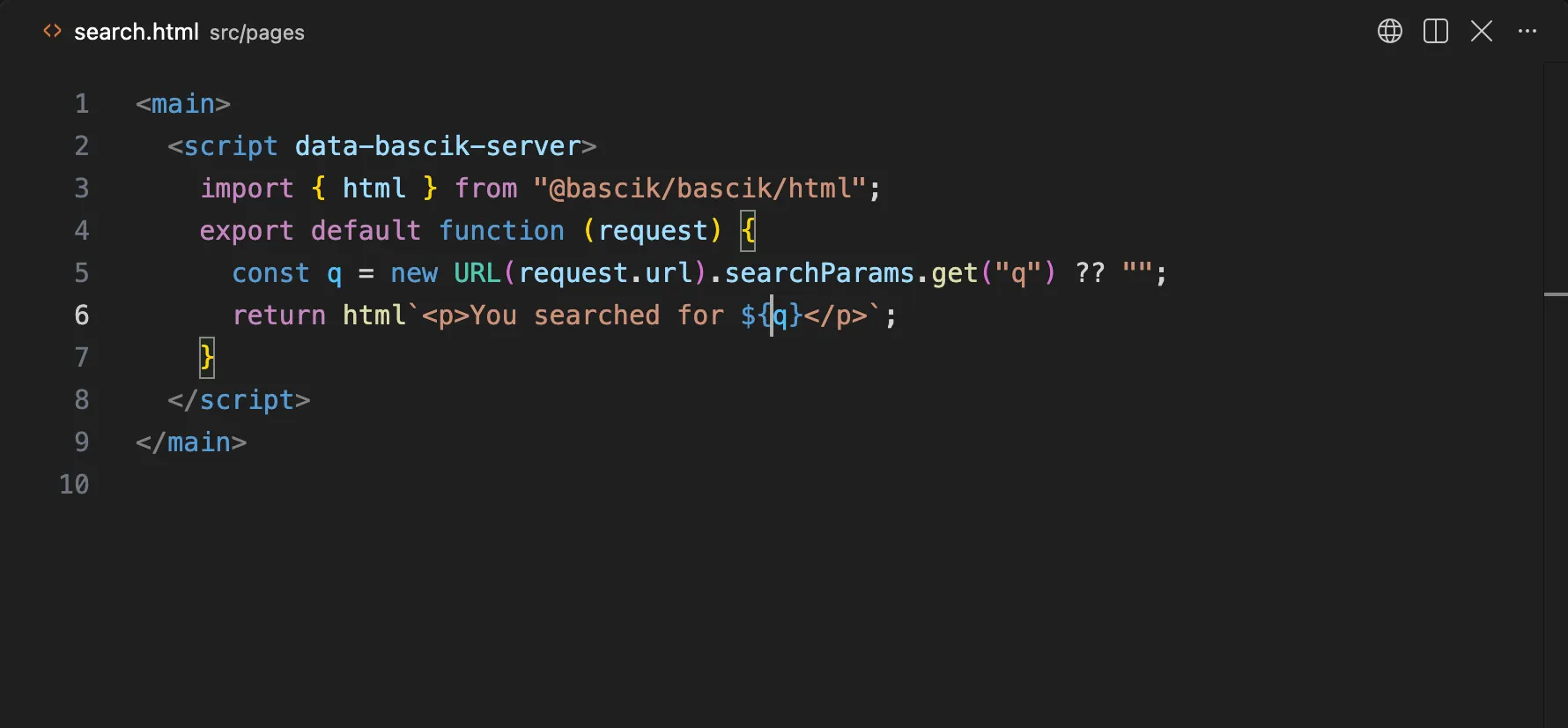
These diagnostics identify risky sinks. They do not replace application-specific validation, escaping, or authorization. See Security and the Linter for complete guidance.
Validate API Routes
JavaScript and TypeScript files under src/api/ receive route-specific checks:
- HTTP method exports must use recognized uppercase names:
GET,POST,PUT,PATCH,DELETE,OPTIONS, orHEAD. - Annotated handlers should return
ResponseorPromise<Response>.anyandunknownare also accepted when an exact type is unavailable. - A route file with no recognized HTTP method export reports an error.
- A
request.json()orreq.json()call outside an apparenttryblock receives an information diagnostic, because malformed JSON can otherwise produce an unhandled error.
The extension also ships snippets for scaffolding route handlers in TypeScript and JavaScript. In a .ts file the handler's arguments are typed; in a .js file the same snippets insert them without annotations.
| Prefix | Inserts |
|---|---|
bascik-api | A route handler with an HTTP method picker and request: Request and context: { params: Record<string, string | string[]>; remoteIp: string } arguments in TypeScript |
bascik-get | A GET handler |
bascik-post | A POST handler that parses the JSON request body in a try block and answers 400 when it is malformed |
params holds a string[] for a catch-all [...name] segment and a string for a [param] segment, so narrow the value before you use it as either.
Several Scripts in One File
A Bascik page or component often has more than one <script>: a build script, a server script, and a script for the browser. VS Code's built-in HTML checker joins every classic <script> (one without type="module") in a file into one JavaScript file before it checks them. Two Bascik scripts that each export default then look like one file with two default exports, and VS Code underlines both with:
A module cannot have multiple default exports.VS Code also checks type="text/typescript" blocks as TypeScript, without Bascik's @/ import root. Bascik runs each script on its own, so the page builds fine. The fix is to turn off VS Code's inline script check with the html.validate.scripts setting:
{
  "html.validate.scripts": false
}
A project gets this setting in one of three ways. None of them touches your user settings or any folder that is not a Bascik project:
npm create bascikwrites it to the new project's.vscode/settings.json, so it works for teammates before they install the extension.bascik initadds it to.vscode/settings.jsonin the current folder, and keeps any settings that file already has.- The extension's prompt, or pasting it yourself. When the extension starts in a workspace that holds a
bascik.config.js,bascik.config.mjs, orbascik.config.tsand nobody has sethtml.validate.scriptsin the user, workspace, or folder settings, it shows one message (unless VS Code's built-in HTML Language Features extension is disabled: then nothing checks inline scripts, the error cannot appear, and the extension asks nothing) that explains the false error, with two buttons. Add to workspace settings writes the setting to.vscode/settings.jsonin each Bascik folder and keeps what that file already has. Don't ask again stops the message for that workspace. The message shows at most once per window. Or paste the JSON above into.vscode/settings.jsonat the project root; if the file already has settings, add the"html.validate.scripts": falseline inside its braces.
The extension never changes the setting without your click, and it never asks when the value is already set either way. A project that wants VS Code's check can set it to true.
Here is what you give up. With the setting off, VS Code no longer reports JavaScript syntax errors or type and semantic errors for code inside <script> tags in .html files: no red underlines and no Problems entries for it. Completions, hover, <style> checks, and checks in .js and .ts files work as before. The Bascik language server still checks Bascik's own rules inside scripts, such as conflicting directives and unsafe server output, in the editor and under bascik --check, but it does not check general JavaScript syntax in an inline script either. Script errors are still caught when the code loads:
- A build script or server script with a syntax error fails at load, with the file and line. The dev server prints the error and leaves that page out (it returns 404), and
bascik --buildfails. - A script for the browser with a syntax error shows the error in the browser console when the page loads.
VS Code forks such as Cursor and Windsurf read the same .vscode folder and settings, so all of this applies to them too.
Configure the Extension
Suppress Diagnostics with Ignore Comments
Suppress diagnostics on a line or block using in-file comments:
HTML:
html<!-- bascik-ignore --> <docs-head></docs-head> <!-- bascik-disable --> ... code with warnings ... <!-- bascik-enable -->JavaScript and TypeScript:
ts// bascik-ignore btn.id = "custom";CSS:
css/* bascik-ignore */ [data-state] { color: red; }
Configure Per Project with bascik.ext.json
Configure extension behavior per project without modifying application config (bascik.config.ts) by placing a bascik.ext.json or bascik.ext.ts file in your project root:
{
  "diagnostics": {
    "enabled": true,
    "selfClosingComponents": true,
    "unclosedComponents": true,
    "disabledRules": ["css-attribute-selector"]
  }
}
A bascik.ext.ts or bascik.ext.js is read without running it, so it holds literal values only: export default { ... } (with satisfies after it if you like), const config: BascikExtensionConfig = { ... }; export default config;, or module.exports = { ... }. The first of these files present is the config. When it cannot be read (invalid JSON, a computed value, no default export, or a file the editor may not open), the language server ignores it, without falling back to the next name, and logs the file, line, and reason to the Bascik output panel, or to the terminal under --check.
TypeScript Settings
Two settings control the TypeScript errors and import features in script tags:
| Setting | Default | What it does |
|---|---|---|
bascik.typescript.enabled | true | Report TypeScript errors in type="text/typescript" blocks, and answer hover, completion, definition, and signature help for imports there. Turn it off to keep only Bascik's own diagnostics |
bascik.typescript.path | "" | An absolute path to a typescript package folder (TypeScript 5 or 6) to check with instead of VS Code's own. A relative path is rejected, not read from the open workspace. It is a user setting only, so a workspace you open cannot choose code for the editor to run |
The extension never bundles TypeScript. It looks for one in this order: the folder bascik.typescript.path names, then the TypeScript VS Code ships with, then the project's own typescript package. When bascik.typescript.path names a folder that cannot be used (a typo, a relative path, a folder that is not a typescript package, TypeScript 7, or a TypeScript older than 5), VS Code shows a warning once and the check uses VS Code's own TypeScript instead. TypeScript 7 publishes no language service for other programs to use, so a TypeScript 7 install is skipped, and so is one older than TypeScript 5, which cannot resolve .ts imports as Bascik does. When no usable TypeScript is found, the checks are off and the Bascik output panel says why, once. Changing either setting restarts the language server.
Filter Generic Editor Word Suggestions
VS Code by default offers word-based completions derived from surrounding text in the active document. Because VS Code merges these suggestions independently, generic text tokens from nearby tags may appear in the completion list. To limit HTML suggestions to semantic attributes and Bascik completions, disable word-based suggestions for HTML in settings.json:
"[html]": {
  "editor.wordBasedSuggestions": "off"
}
Work Across Nested and Multi-Root Projects
The extension discovers Bascik configs recursively inside every VS Code workspace folder. Each config directory is treated as an independent project with its own component roots, import root, component usage index, navigation, hover details, and diagnostics.
When projects are nested, the closest enclosing project owns the file. Separate workspace folders remain isolated. A workspace folder with no Bascik config still receives zero-config support with src/components and src as the defaults, as long as its root has a language server config (bascik.ext.json, .bascikrc.json, bascik.ext.ts, or bascik.ext.js) or its package.json lists @bascik/bascik or @bascik/language-server in dependencies, devDependencies, peerDependencies, or optionalDependencies. A folder with none of these is not a Bascik project, such as a React or Vue app that has its own src/components and src/api: it gets no Bascik diagnostics, and the Bascik output panel says why, once. Adding a bascik.config.* turns the checks on right away; adding a language server config or the dependency turns them on at your next edit. Neither needs a reload.
Component discovery follows directory.components in the owning project's config file, found in the same order the CLI uses: bascik.config.js, then bascik.config.mjs, then bascik.config.ts. When a folder holds more than one, the first in that order wins, so the editor and the build read the same file. It supports one component directory, multiple directories, absolute paths, and relative paths, including shared component directories outside the project root.
Config files, component directories, project HTML usage, and .ts and .js modules are watched for changes. Creating, editing, renaming, or deleting them refreshes extension state automatically, so reopening VS Code is not required: when a closed module starts or stops importing a helper, the open helper's markup diagnostics follow.
How It Works
The extension does not analyze anything itself. It starts @bascik/language-server, which ships inside the extension, and connects it to VS Code. Every diagnostic, completion, hover, definition, and reference on this page comes from that server. The same server runs under bascik --check and in other editors, so a squiggle in VS Code is the same finding CI reports.
If diagnostics ever look stale or missing, open the Bascik output panel to see the server's log. Reloading the window restarts it.
Command-Line Linting and Other Editors
If you need to run these diagnostics in continuous integration (CI), or you want editor support for Neovim, see the Linter documentation.